macOS
Ziti Desktop Edge for Mac is the tunneler for macOS.
Installation
Download Ziti Desktop Edge from the Mac App Store.
If you already have Ziti Desktop Edge for Mac installed and you are updating it, make sure to turn off your Ziti Desktop Edge for Mac before updating it.
After the download and installation are complete, click Open.
Enroll an identity
Follow this guide to create an identity and transfer the JWT file to your Mac.
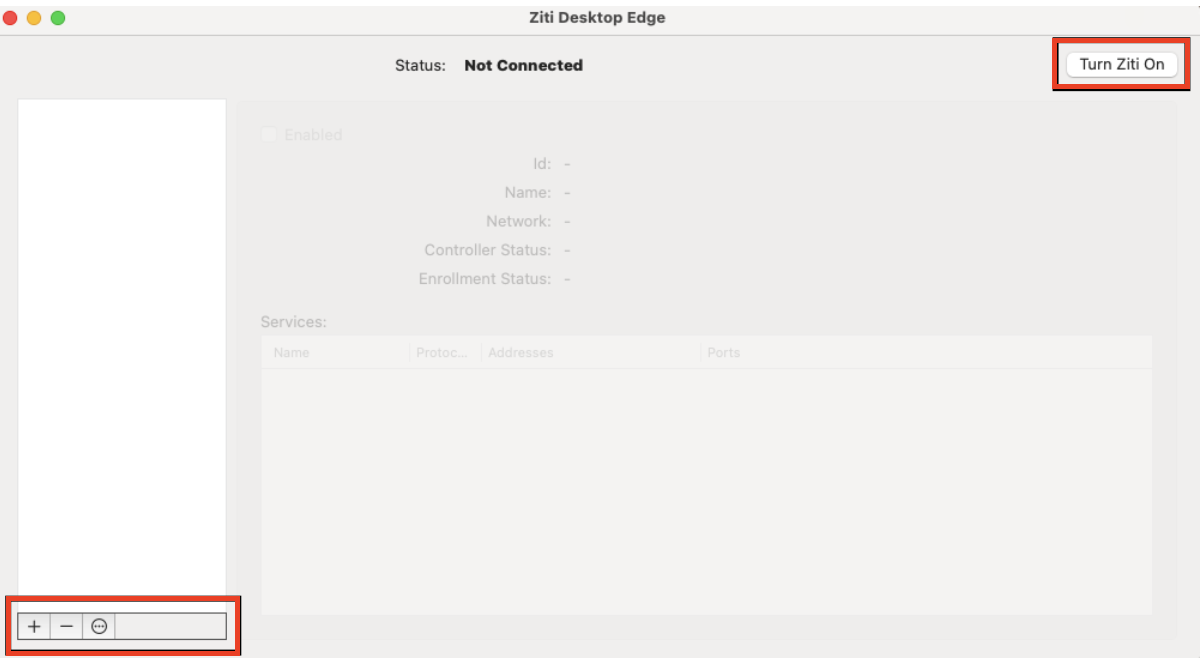
From the Ziti Desktop Edge for Mac UI, click Turn Ziti On. Add an identity by clicking the + in the lower left of the UI. Choose the JWT downloaded to your Mac in the previous step.
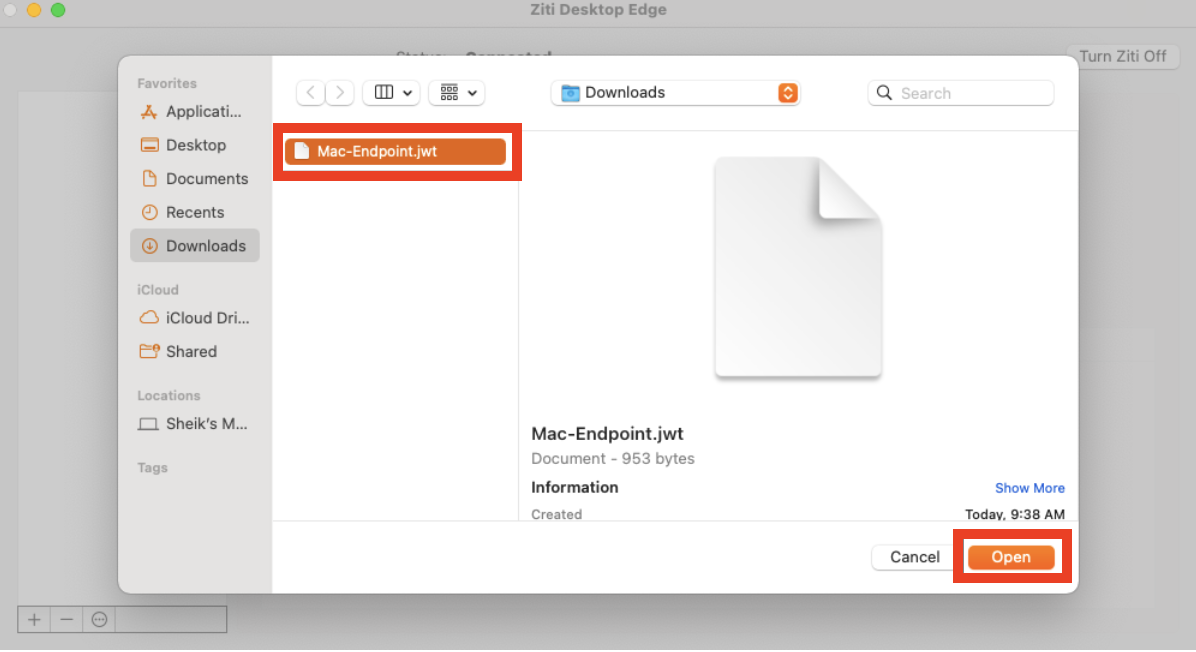
Find and select the downloaded JWT file and then click Open.
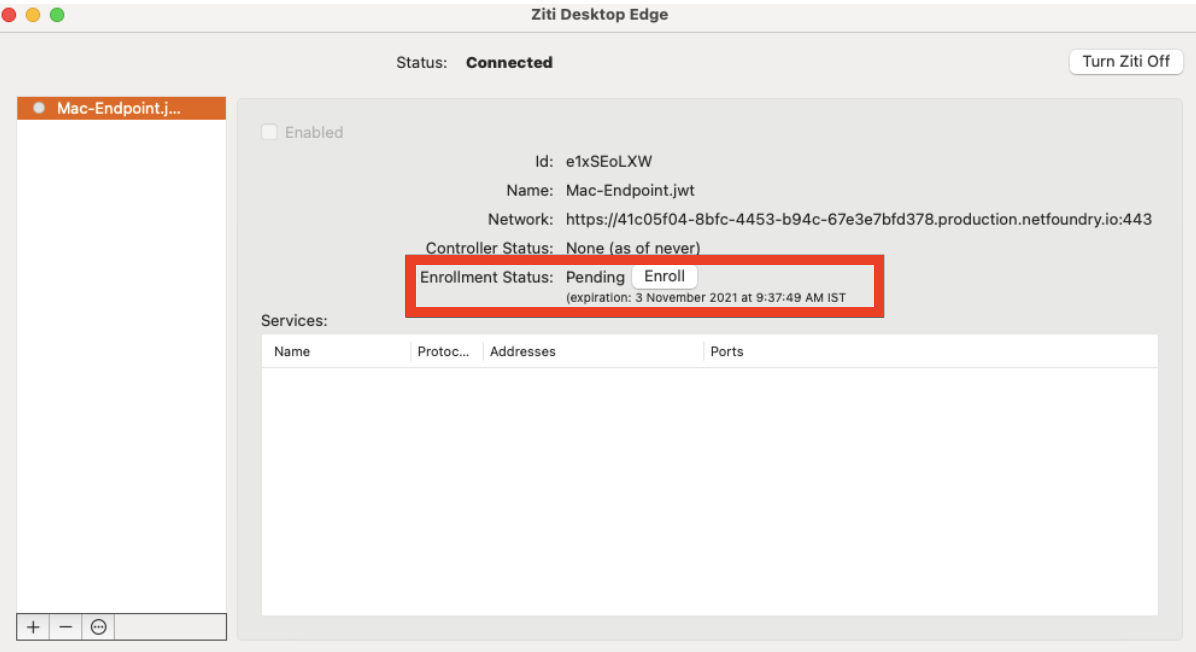
In the left-side list, the added JWT will be displayed. Finish the enrollment process by clicking the Enroll button.
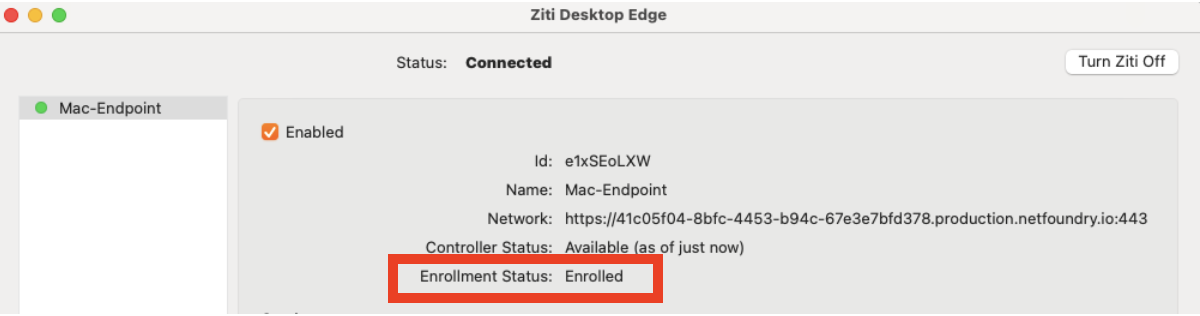
The Enrollment Status will show Enrolled once it's completed. Once the identity has been enrolled, the Ziti Desktop Edge for Mac UI will display the services authorized for the identity.
Troubleshooting
Logs are available from the menu bar icon in Logs > Packet Tunnel. Alternatively, you can check the file in
~/Library/Group\ Containers/MN5S649TXM.ZitiPacketTunnel.group/logs/appex.log for any errors.
Crash reports are available in macOS Console.app under Crash Reports > PacketTunnelProvider. The associated
files are also available in ~/Library/Logs/DiagnosticReports/PacketTunnelProvider*.crash.